Three.js Examples
The goal of this collection is to provide a set of basic and instructive examples that introduce the various features in
Three.js. The source code for each page contains detailed comments.
Hosted at GitHub. Total examples: 83. Last updated: 23 August 2013. Compatible with Three.js version 60.
Basic Examples
• Hello World
• Template
• Info Box
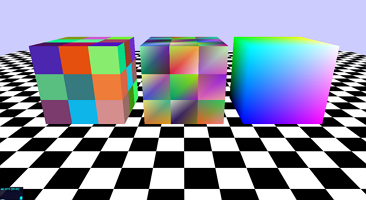
• Materials - Solid
• Color Explorer
• Wireframe
• Lines and Dashed Lines
• Helpers
• Outline Effect
• Face/Vertex Colors
• Shapes
• Extrusion
• Text3D
Texture Examples
• Textures
• Texture - Repeat
• Texture - Text3D
• Translucence
• Shadow
• Subdivision Modifier - Cube
• SkyBox
• Reflection
• Refraction
• Bubble
• Texture from Canvas
• Texture Animation
Sprite Examples
• Sprites
• Sprite Text Labels
• Labeled Geometry
Mouse and Keyboard Examples
• Mouse Sprite
• Mouse Click
• Mouse Hovering
• Mouse Tooltip
• Keyboard Events
Camera/Renderer Examples
• Mesh Movement
• Chase Camera
• Multiple Cameras
• Camera to Texture
• Viewports - Dual
• Viewports - Quad
• Embedded HTML
• Red/Blue Anaglyph
Shader Examples
• Shader - Simple
• Shader - Explorer
• Shader - Sphere Unwrapping
• Shader - Attributes
• Shader - Animated Materials
• Shader - Animated Fireball
• Shader - Glow Effect
• Simple Glow (non-shader)
Particle System Examples
• Particles
• Particle System - Static
• Particle System - Shader
• Particle System - Attributes
• Particle System - Dynamic
• Particle System - Path Movement
• Particle Engine
Video/Webcam Examples
• Video to Texture
• Webcam Test
• Webcam to Texture
• Motion Detection
• Motion Detection and Scene
• Many Cameras
GUI Examples
• GUI
• GUI Controller
Gamepad and Leapmotion Controller Examples
• Gamepad Test
• Mesh Movement - Gamepad
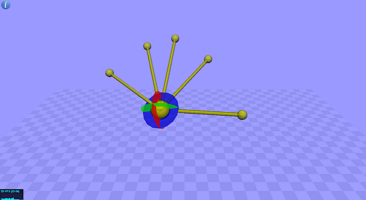
• LeapMotion Visualization
Model Examples
• Model
• Animated Model
• Animated Model with Controls
Collision Detection Examples
• Collision Detection
Marching Cubes Examples
• Marching Cubes Algorithm
• Metaballs
• Metabubbles
Mathematical Examples
• Constructive Solid Geometry
• Sphere Projection
• Topology Data
• Topology Data 2
• Polyhedra Viewer
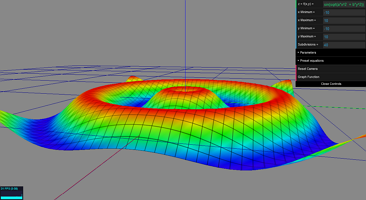
• Function Grapher
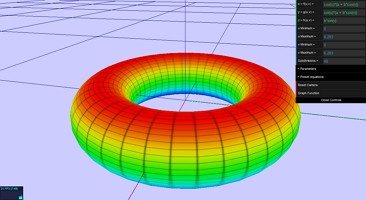
• Parametric Surface Grapher
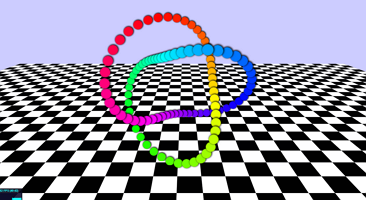
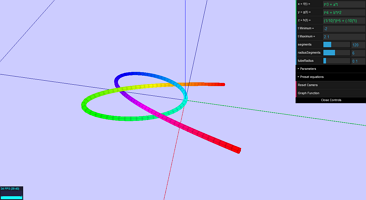
• Parametric Curve Grapher
Other Examples
• Voxel Painter
•
Hello World
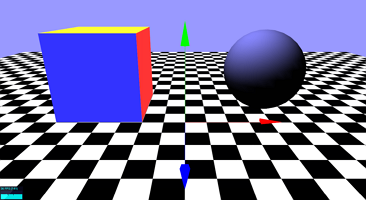
A heavily commented but basic scene. Illustrates the setup of a scene, camera, renderer, event handlers (for window resize and fullscreen, provided by the THREEx library), mouse controls to rotate/zoom/pan the scene, mini-display for FPS stats, and setting up basic geometries: a sphere with lighting effects, a multi-colored cube, a plane with an image texture applied, and skybox/fog options for rendering objects distant from the camera.
Many of these features are described in more detail in the examples below.
Template
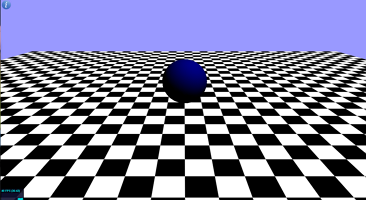
The "Hello World" code with most comments and meshes removed.
Info Box
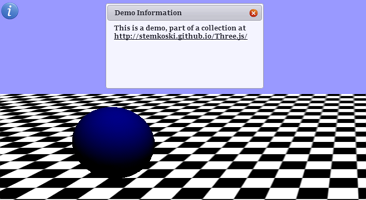
The template code with minimal jQuery added to create a button that displays an information dialog box.
Materials - Solid
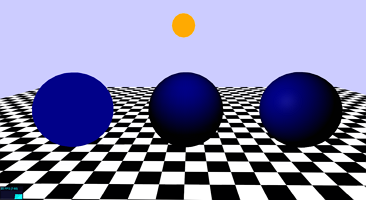
Illustrates the difference between the Basic, Lambert, and Phong materials.
Color Explorer
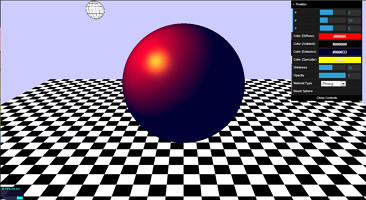
Illustrates the effects of changing the Color (Diffuse Color), Ambient Color, Emissive Color, Specular Color, Shininess amount, and Opacity amount.
Wireframe
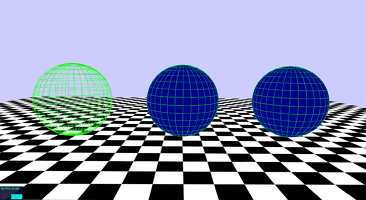
Demonstrates how to create and apply wireframe materials.
Lines and Dashed Lines
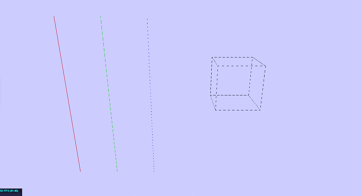
Demonstrates how to create solid lines, dashed lines, and contains a function to convert geometries into line-style objects.
Helpers
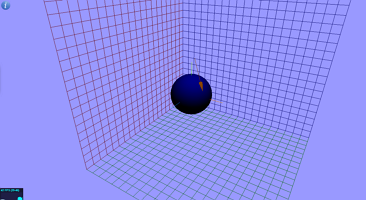
Demonstrates the use of AxisHelper, GridHelper, and ArrowHelper to easily create line-based objects.
Outline Effect
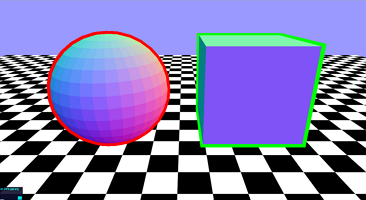
Demonstrates an effect to display a solid outline around a mesh.
Shapes
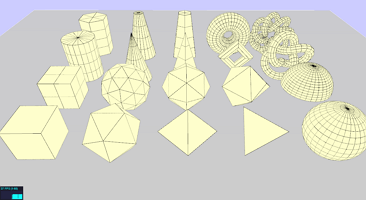
Uses some of the built-in geometry constructors to create the following three dimensional shapes (and variations): cube, icosahedron, octahedron, tetrahedron, sphere, dome, cylinder, prism, cone, pyramid, frustum (truncated cone and truncated pyramid), torus, torus knots.
Extrusion
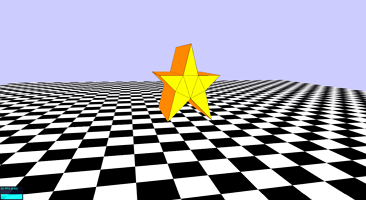
Create an array of 2D points,
make a 2D shape, and create an extrusion (a 3D shape whose cross-sections are the given 2D shape).
Text3D
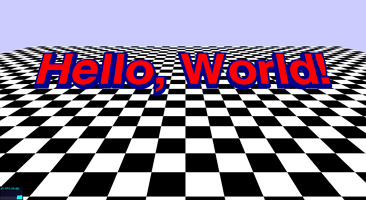
Create a 3D text object (an extruded version of text rendered as a 2D image).
Textures
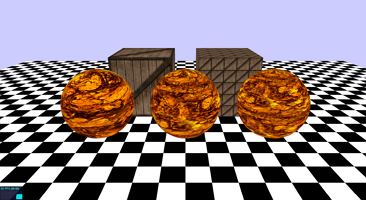
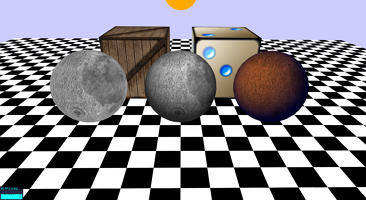
Demonstrates surfaces with textures (image-based materials), including shading and coloring effects.
Texture - Text3D
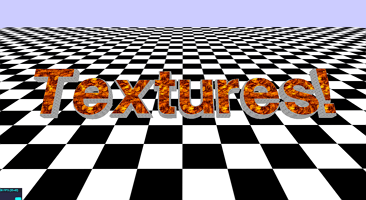
Applying a texture to 3D Text. (Requires repeating texture on surface.)
Translucence
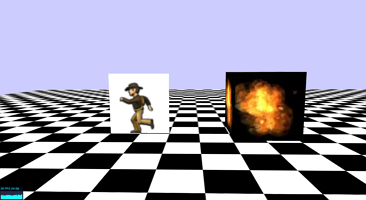
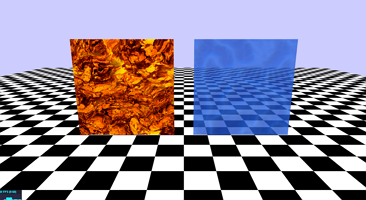
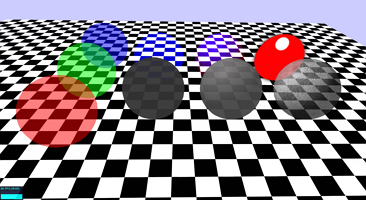
Illustrates using basic and phong-shaded translucent materials, making image textures translucent, using additive blending for a glow-like effect, and using image textures that already have alpha transparency.
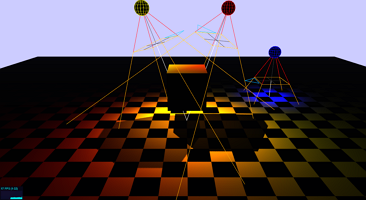
Shadow
Using spotlights to create shadow effects in a scene.
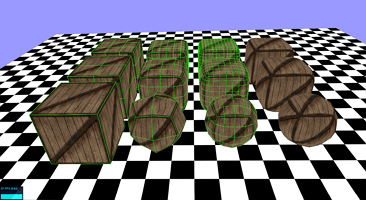
Subdivision Modifier - Cube
Demostrates a function that interpolates additional points to a geometry, creating a "smoothing" effect. This example applies the modifier to a variety of cube geometries, resulting in spherical and beveled cubes.
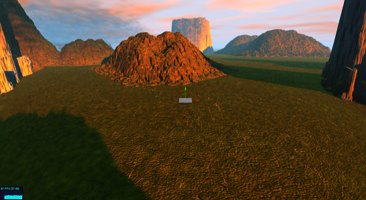
SkyBox
Using textures to create a "SkyBox": backgrounds images projected onto a cube surrounding the rendering region, which creates the illusion of distant 3D surroundings.
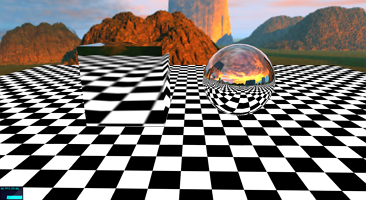
Reflection
Creating a mirror-like material by projecting an image of the surroundings onto a object.
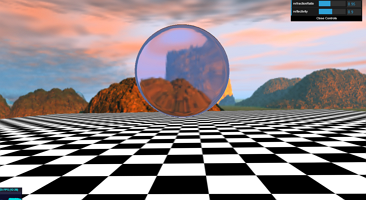
Refraction
Creating a glass-like material by projecting a refracted image of the surroundings onto a object.
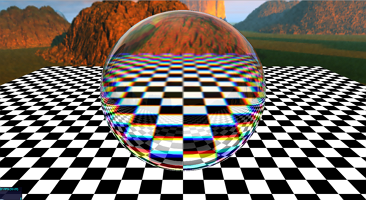
Bubble
Creating a bubble-like material (incorporates reflection, refraction, and chromatic abberation) using a Fresnel shader.
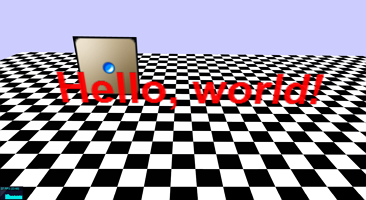
Texture from Canvas
Create a canvas element via JavaScript, draw text or images on it, and then use it as a texture for a mesh.
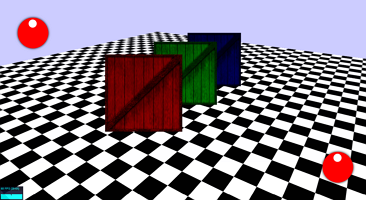
Sprites
Sprites are images (not attached to geometries/surfaces) displayed in a scene, always orthogonal to the camera.
They can either appear in the 3D scene (useful as part of a particle effect) or rendered using screen coordinates (useful as part of a graphical user interface (GUI) or a heads-up display (HUD)).
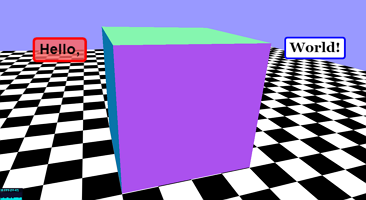
Sprite Text Labels
Combines techniques from Sprite demo and Texture from Canvas demo, introducing a function to easily make customizable text labels.
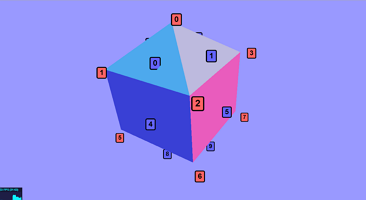
Labeled Geometry
Application of the Sprite Text Labels demo to label all vertices and edges of a geometry with their index number.
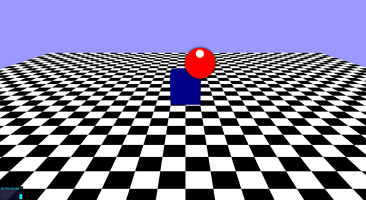
Mouse Sprite
Display a sprite at the current position of the mouse. (May be useful for targeting icon or mouse pointer icon.)
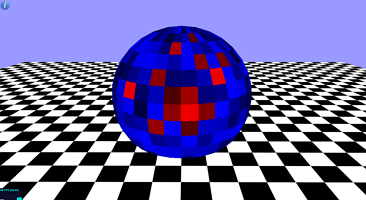
Mouse Click
Change the color of a face on a mesh when clicked.
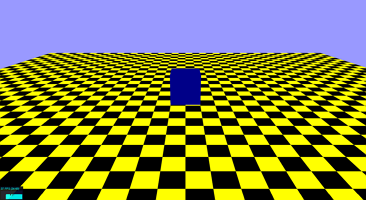
Mouse Hovering
Change the color of an object in the scene when the mouse hovers over it.
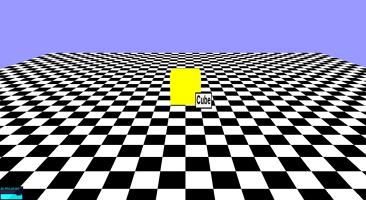
Mouse Tooltip
Create a tooltip-style effect to display mesh names when mouse hovers. (Uses ideas from examples: Mouse Sprite, Mouse Hovering, and Texture from Canvas.)
Keyboard Events
Demonstrates use of KeyboardState.js to respond to key down/pressed/up events.
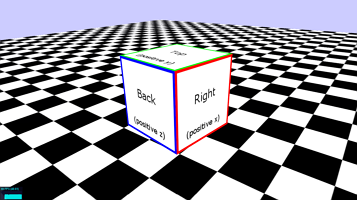
Mesh Movement
Using the functionality provided by THREEx.Keyboard, translate and rotate a mesh, with the following controls:
W/S/Q/E: translate forwards/backwards/left/right (local).
A/D/R/F: rotate left/right/up/down (local).
UP/DOWN/LEFT/RIGHT: translate Z-/Z+/X-/X+ (global).
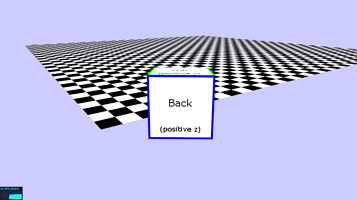
Chase Camera
Create a "chase cam" -- move the camera around together with a mesh. (Same controls as in "Mesh Movement" example.)
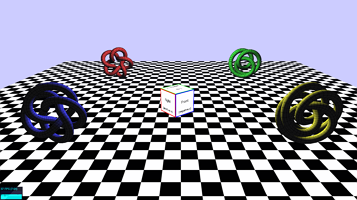
Multiple Cameras
Switch between multiple cameras: chase camera (press "1") and fixed top view (press "2"). (Otherwise, same controls as in "Mesh Movement" example.)
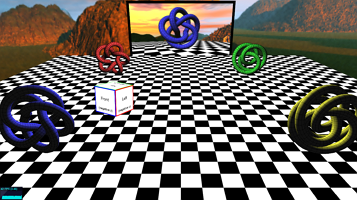
Camera to Texture
Move around a camera and project what it sees it onto a texture. (Same controls as in "Mesh Movement" example.)
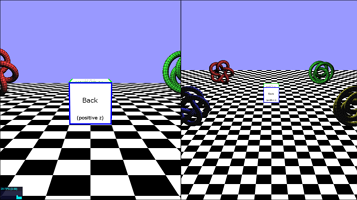
Viewports - Dual
Simultaneously render two different camera views onto the same canvas element.
(Same controls as in "Mesh Movement" example.)
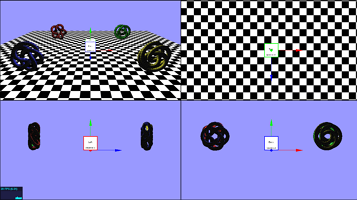
Viewports - Quad
Simultaneously render four different camera views onto the same canvas element: one perspective camera and three
orthographic cameras along the axis directions (similar to many 3D modeling software configurations).
(Same controls as in "Mesh Movement" example.)
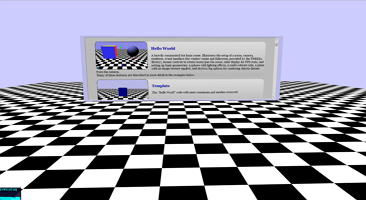
Embedded HTML
Displays an interactive webpage within a Three.js scene. Based on the work of Jerome Etienne:
http://learningthreejs.com/blog/2013/04/30/closing-the-gap-between-html-and-webgl/
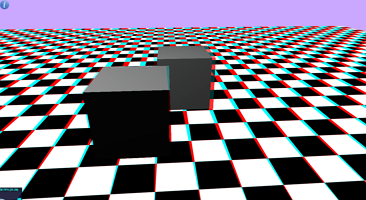
Anaglyph
Displays a scene rendered using an Anaglyph effect; use red/blue 3D glasses to view.
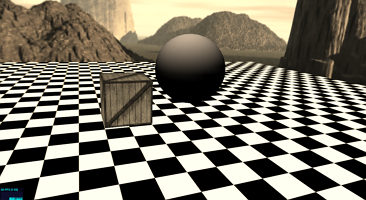
Shader - Simple
Demonstrates how to set up a simple pre-defined shader (sepia coloring).
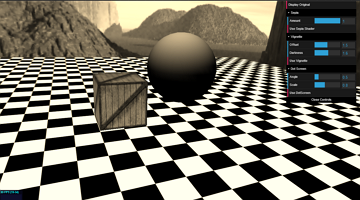
Shader - Explorer
Illustrates the effects of changing the parameters in different shaders (sepia, vignette, dot screen).
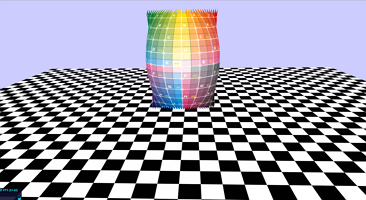
Shader - Sphere Unwrapping
Demonstrates using a vertex shader to animate vertices, changing their positions according to their UV-coordinates; the result is a sphere that "flattens" into a plane.
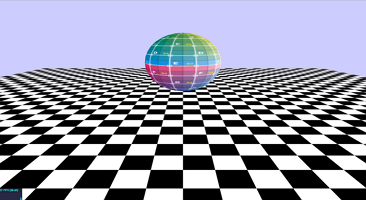
Shader - Attributes
Demonstrates using a vertex shader to animate vertices, using "attributes": a set of values associated to each vertex.
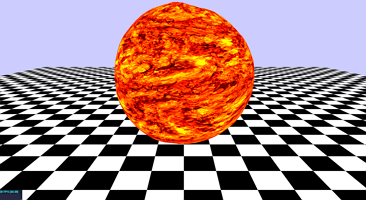
Shader - Animated Fireball
Builds upon the "Shader - Animated Materials" demo: a second image is randomly distorted and blended with the first, and the positions of the vertices are randomly distorted. These effects are combined to create an animated fireball.
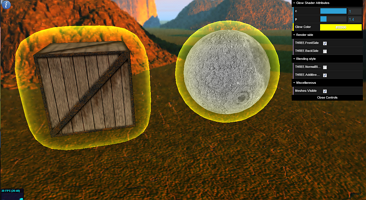
Shader - Glow Effect
Create a glow effect using shaders. Includes GUI to adjust shader parameters. Using front-face rendering can create glow or shell style effects; using back-face rendering can create halo or atmosphere style effects (see information in-demo for corresponding parameter values).
Simple Glow (non-shader)
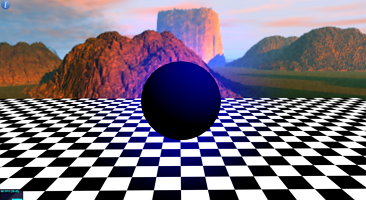
Create a glow effect *without* using custom shader material -- uses a additively blended sprite. (Only works well with spherical objects.)
Particles
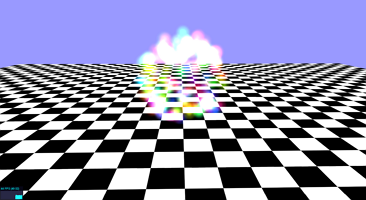
Create a particle effect using a group of sprites and alpha blending (or transparency).
Particle System - Static
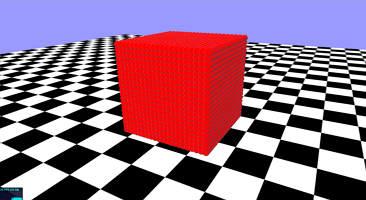
Create a group of particles using the ParticleSystem object (for faster rendering). Each vertex in a given geometry corresponds to the position of a particle.
Particle System - Shader
The "Particle System - Static" demo rewritten using a shader-based material; will be useful in subsequent demos.
Particle System - Attributes
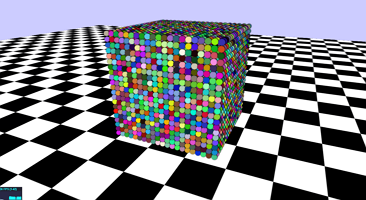
Builds upon "Particle System - Shader" demo, incorporating shader attributes, enabling each particle to have customized properties - in this case, each particle is assigned a different color.
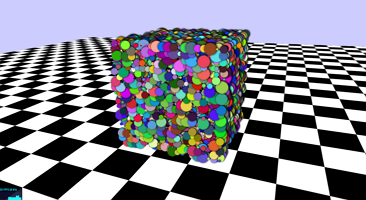
Particle System - Dynamic
Builds upon "Particle System - Attributes" demo, incorporating animation: particle sizes oscillate at different frequencies over time.
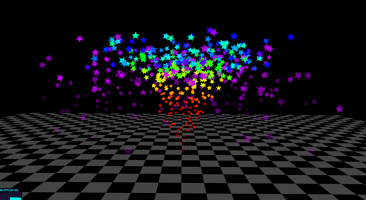
Particle Engine
A complete particle engine for controlling a particle system to create special effects such as fire, smoke, stars, snow, and fireworks.
Includes 11 example effects. Customizable particle properties include particle image, rotation, size, color, and opacity.
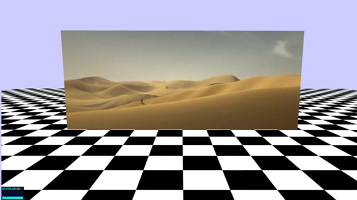
Video to Texture
Display a video as a texture. Keyboard controls: "P" to play/resume, "SPACE" to pause, "R" to rewind, "S" to stop.
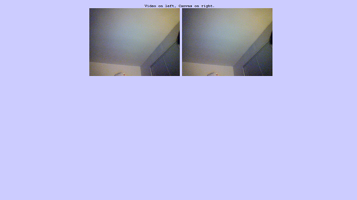
Webcam Test
Displays user webcam image on this webpage. Requires Webcam,
user needs to accept permissions to run, requires WebRTC compatible browser (see http://www.webrtc.org/).
(No Three.js code required; this example is a lead-in to the following example.)
Webcam Texture
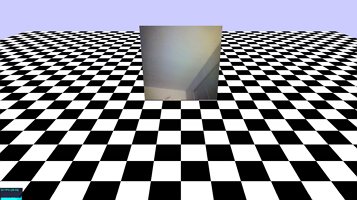
Displays user webcam image as a texture on a mesh. Requires Webcam,
user needs to accept permissions to run, requires WebRTC compatible browser (see http://www.webrtc.org/).
Press P to pause webcam (image freezes) and R to resume webcam.
Many Cameras
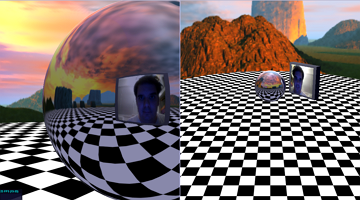
Displays user webcam image as a texture on a moveable mesh (W/A/S/D/Q/E).
Incorporates code from examples: Webcam Texture, Mesh Movement, Reflection, Skybox, and Viewports - Dual.
Requires Webcam,
user needs to accept permissions to run, requires WebRTC compatible browser (see http://www.webrtc.org/).
Motion Detection
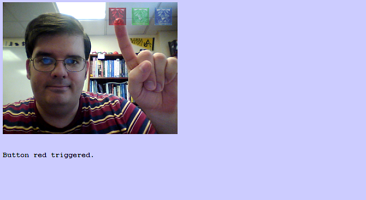
Displays user webcam image on webpage.
Requires WebRTC compatible browser (see http://www.webrtc.org/).
Detects motion occuring within given regions; see http://www.youtube.com/watch?v=ehkqgaGwGcw for demo.
Based on http://www.adobe.com/devnet/html5/articles/javascript-motion-detection.html.
(No Three.js code required; this example is a lead-in to the following example.)
Motion Detection and Scene
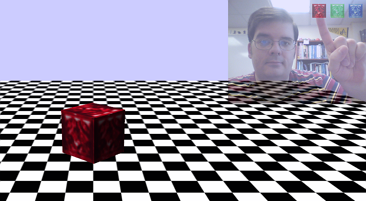
Displays user webcam image on webpage. Requires Webcam,
user needs to accept permissions to run, requires WebRTC compatible browser (see http://www.webrtc.org/).
Detects motion occuring over graphics regions, and changes texture on spinning cube accordingly.
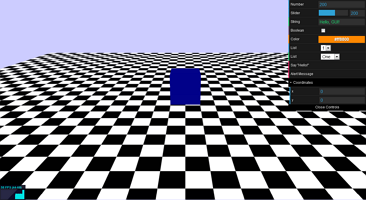
GUI
Create a graphical user interface (using the DAT.GUI library).
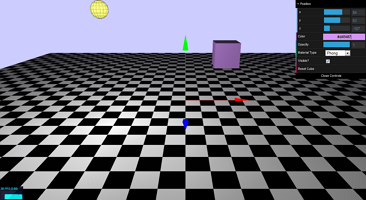
GUI Controller
Create a graphical user interface (using the DAT.GUI library) that controls the appearance of a cube mesh.
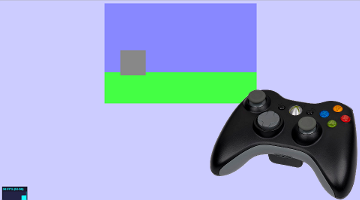
Gamepad Test
Uses a Gamepad (e.g. XBox controller) to move a square image around a canvas. Requires Chrome browser and connected gamepad to run. Uses gamepad.js library (patched) from http://github.com/inequation/gamepad.js. Analog sticks and directional pad move square up/down/left/right. A/B/X/Y buttons change colors of square. Start/select buttons reset square to original position. [Note: You may need to press one of A/B/X/Y buttons for controller to be recognized by the web browser.]
(No Three.js code required; this example is a lead-in to the following example.)
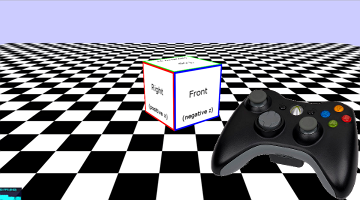
Mesh Movement - Gamepad
Uses a Gamepad (e.g. XBox controller) to move a cube around a Three.js scene, similar to Mesh-Movement example above. Requires Chrome browser and connected gamepad to run. Left analog stick moves cube forward/backward and turns left/right. Directional pad moves cube forward/backward/left/right. Right analog stick only turns cube left/right. Right shoulder buttons double speed of movement/turns. Start/select buttons reset cube to original position and rotation.
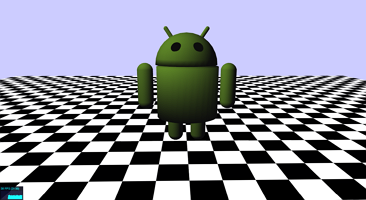
Model
Loading a static 3D model (exported from Blender to JavaScript).
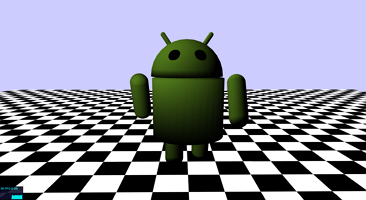
Animated Model
Loading an animated 3D model (exported from Blender to JavaScript).
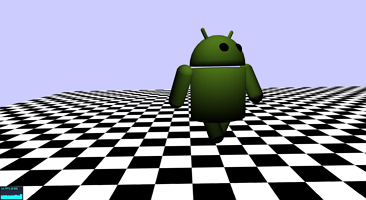
Animated Model with Controls
Loading an animated 3D model (exported from Blender to JavaScript). Model moves with arrow keys; model animates when moving and stops animating when not moving.
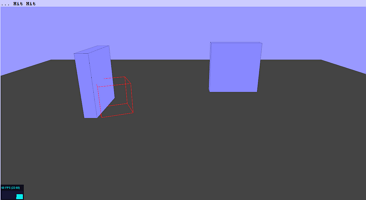
Collision Detection
Detect when the vertices of a mesh intersect with another object. (Move the wireframe cube with the arrow keys and rotate with W/A/S/D; the text "Hit" will appear at the top of the screen once for every vertex intersection.)
Marching Cubes Algorithm
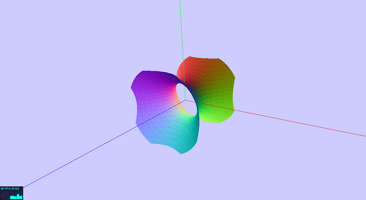
An illustration of the "Marching Cubes" algorithm for triangulating a level surface ("isosurface") of an implicitly defined function f(x,y,z) = c. See the websites:
http://en.wikipedia.org/wiki/Marching_cubes/
http://paulbourke.net/geometry/polygonise/
Metaballs
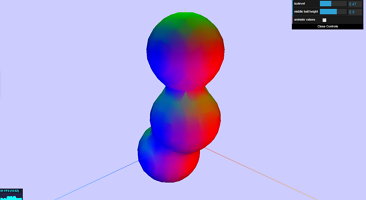
A effect where spheres move around and their surfaces merge and split; the surfaces are calculated by implicit functions and drawn using the "Marching Cubes" algorithm. For more information, see the websites:
http://en.wikipedia.org/wiki/Metaballs
http://www.geisswerks.com/ryan/BLOBS/blobs.html
Metabubbles
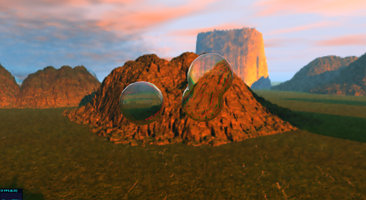
Metaballs demo + Bubble demo = Metabubbles demo!
Constructive Solid Geometry
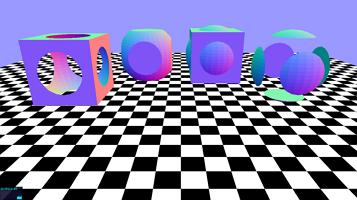
Create a new mesh from the union, intersection, or subtraction of two meshes.
Uses the library at http://github.com/chandlerprall/ThreeCSG/
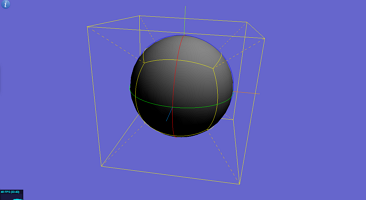
Sphere Projection
Projects a wireframe cube onto a sphere. Includes a method for drawing the arc between two points on a sphere.
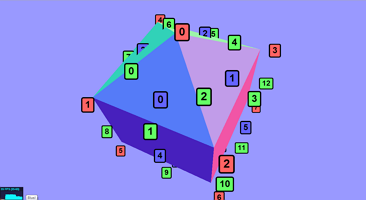
Topology Data
From a THREE.Geometry, creates a topological data structure consisting of vertices, edges, and faces, with incidence data for each. For this example, the corresponding geometry is labeled (including edges) and the data can be manually verified from the browser console. (Builds on Lebeled Geometry demo.)
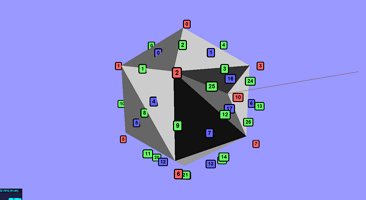
Topology Data 2
Builds upon Topology Data demo; illustrates edge and face subdivision and retriangulation functions and proper face coloring function.
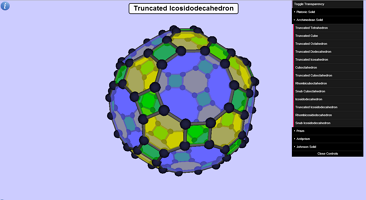
Polyhedra Viewer
Interactive viewer of polyhedra (Platonic, Archimedean, Prisms, Antiprisms, Johnson Solids).
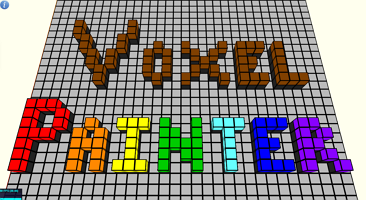
Voxel Painter
Paint with voxels, Minecraft-style! (Think: 3D pixel editor.)